Product Catalog
Audience: Store owners, catalog managers, developers connecting product data sources.
The Product Catalog powers Reevix's chat assistant (accurate product Q&A) and recommendation engine (similar, complementary, and bought-together products). Without a connected catalog, the AI can only answer questions from your FAQs — not about specific products.
Why You Need a Catalog
| Feature | Without Catalog | With Catalog |
|---|---|---|
| Chat product Q&A | Generic responses only | Precise answers about price, stock, specs, variants |
| Product recommendations | Disabled | 6 recommendation types enabled |
| Catalog-based interventions | Disabled | "Only 2 left in stock" nudges |
| Browse abandonment context | Limited | Accurate category and product signals |
Connecting a Data Source
Navigate to Setup → Catalog and click Add Data Source.
Shopify
- Go to Shopify Admin → Apps → Develop apps → Create an app
- Grant the
read_productsandread_inventoryaccess scopes - Copy your Admin API access token
- In Reevix, enter your Shopify store URL (e.g.,
yourstore.myshopify.com) and paste the token - Click Connect — Reevix syncs your full catalog immediately
Auto-sync is available at 1h, 6h, 12h, or 24h intervals. Recommended: 6h for most stores.
WooCommerce
- In your WordPress admin, go to WooCommerce → Settings → Advanced → REST API
- Click Add Key, set permissions to Read
- Copy the Consumer Key and Consumer Secret
- In Reevix, enter your WordPress URL and the two keys
- Click Connect
CSV File Upload
For stores on custom platforms or marketplaces:
- Export your product data as a CSV with these columns (at minimum):
- id, title, description, price, image_url, category, url, in_stock
- Click Upload CSV and select your file
- Map columns if your headers differ from Reevix's expected names
- Click Import
CSV uploads are a one-time snapshot — re-upload whenever your catalog changes significantly.
CSV / JSON / XML Feed URL
For feeds hosted at a URL (e.g., a Google Shopping XML feed):
- Enter the full URL to your feed
- Select the format: CSV, JSON, or Google Shopping XML
- Choose authentication if your feed requires it (see table below)
- Enable Auto-sync and set the frequency
- Click Save
Supported authentication methods:
| Method | When to Use |
|---|---|
| None | Public feed URL |
| Bearer Token | OAuth 2.0 protected feeds |
| Basic Auth | HTTP Basic username/password |
| API Key (Header) | Feed requires a custom X-API-Key header |
| Custom Header | Any single custom header key/value |
Managing Your Feeds
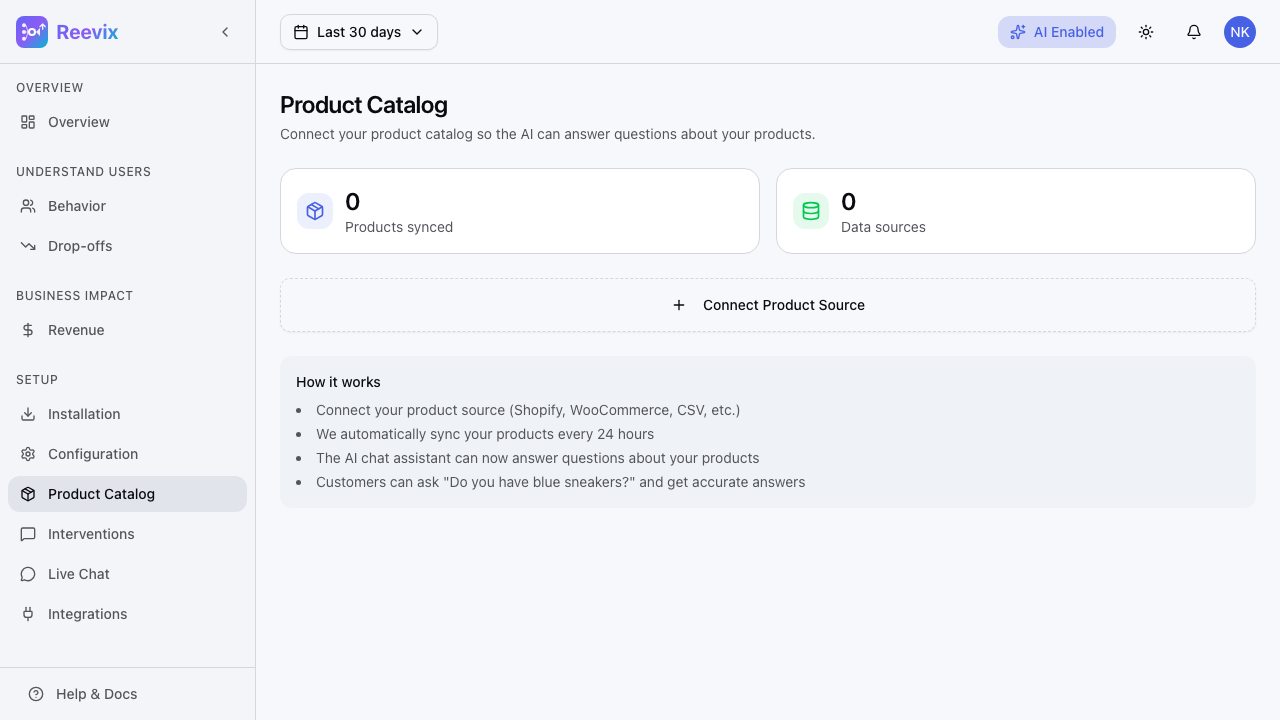
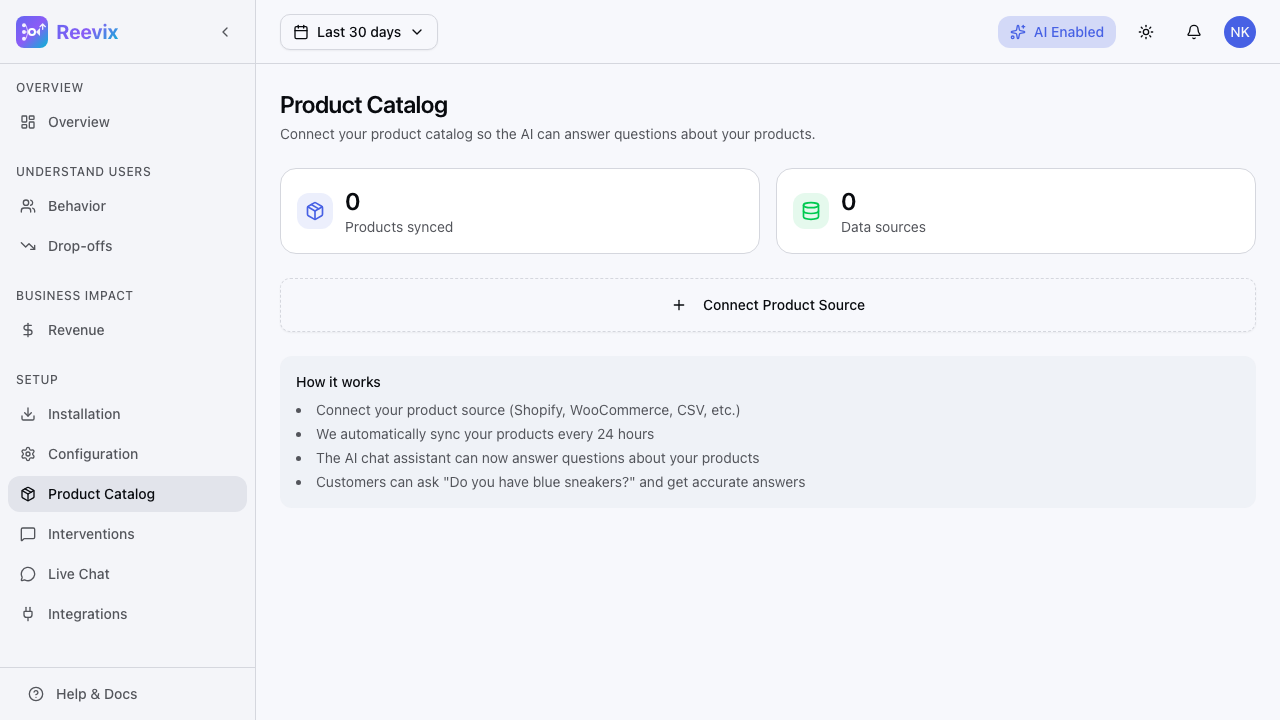
The Catalog page shows a summary:
- Products synced — total product count across all connected sources
- Data sources — number of active feed connections
- Last sync — timestamp of the most recent successful sync
Each feed card shows:
- Sync status —
Synced(green) orFailed(red) - Last synced at — timestamp
- Error message — shown if the last sync failed, with a description to help diagnose (e.g., "Authentication failed — check your API key")
- Re-sync button — force an immediate sync without waiting for the next scheduled run
- Edit — update feed URL, credentials, or sync frequency
- Delete — remove the feed (products from this source are removed from Reevix)
Product Lists (Bestseller, Priority, Discountable)
Beyond the main catalog sync, you can manually curate three special product lists used by the autopilot:
| List | How It's Used |
|---|---|
| Bestseller | Featured in "most popular" recommendations and chat responses |
| Priority | These products are promoted more aggressively in interventions |
| Discountable | These products can be highlighted with discount messages |
To add products to a list:
- Go to Setup → Catalog → Lists
- Select the list (Bestseller, Priority, or Discountable)
- Enter a product URL or SKU and click Add
Products in these lists receive extra weight in the recommendation engine.
Troubleshooting Sync Failures
| Error | Likely Cause | Fix |
|---|---|---|
Authentication failed | API key rotated or expired | Update credentials in feed settings |
Feed URL unreachable | Server down or URL changed | Check the URL manually in a browser |
Parse error | Feed format changed (e.g., new XML schema) | Re-map columns or update format |
Timeout | Feed response too slow (>30s) | Check feed server performance; switch to file upload |
Rate limited | Too many sync requests | Reduce sync frequency to 12h or 24h |