Live Chat Assistant
Audience: Store owners, customer support managers, and marketing teams configuring the on-site chat widget.
Reevix includes a built-in AI chat assistant that answers customer questions instantly — about your products, shipping, returns, and anything you configure. It lives on your storefront alongside the autopilot and requires no extra code.
Overview
The chat assistant:
- Appears as a widget bubble on your storefront (bottom-right or bottom-left)
- Uses your FAQs, product catalog, and declared store policies to give accurate answers
- Can open proactively when Reevix detects a visitor who needs help
- Escalates to human support when it cannot answer
Enabling the Chat Widget
Navigate to Setup → Chat and toggle Enable chat widget to on.
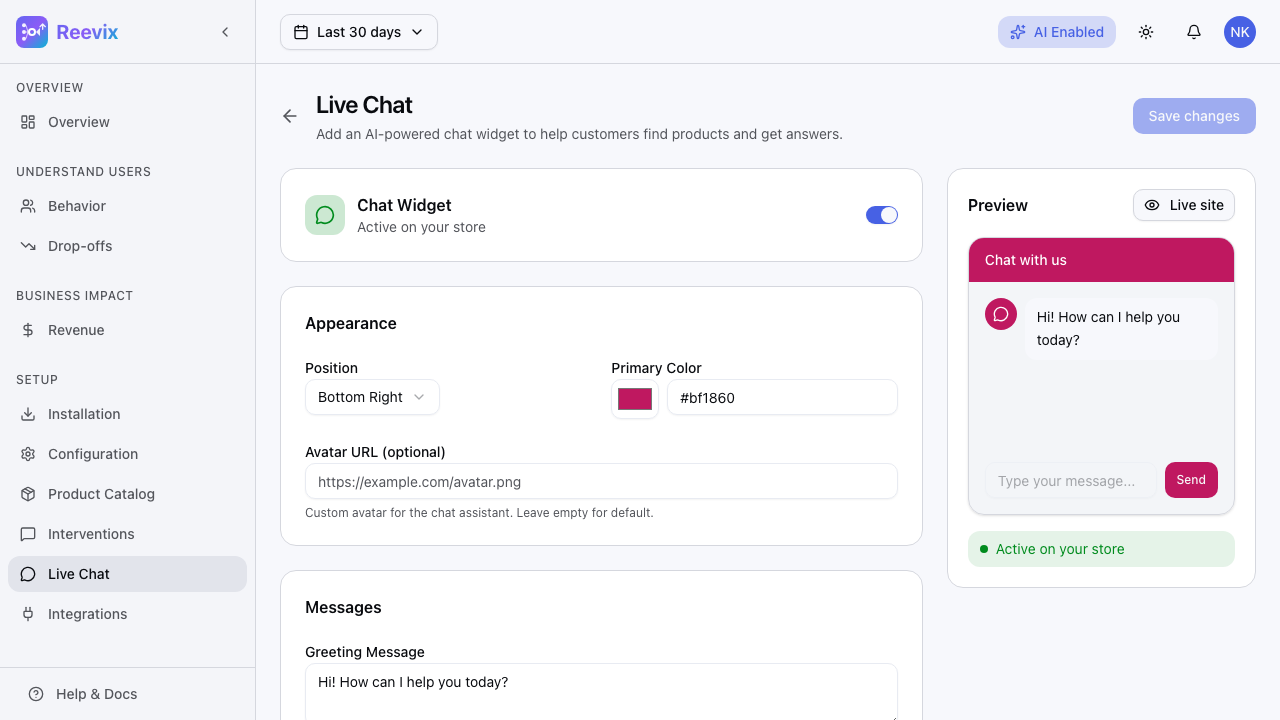
The widget appears on your live store within 60 seconds — no snippet changes needed.
Appearance Settings
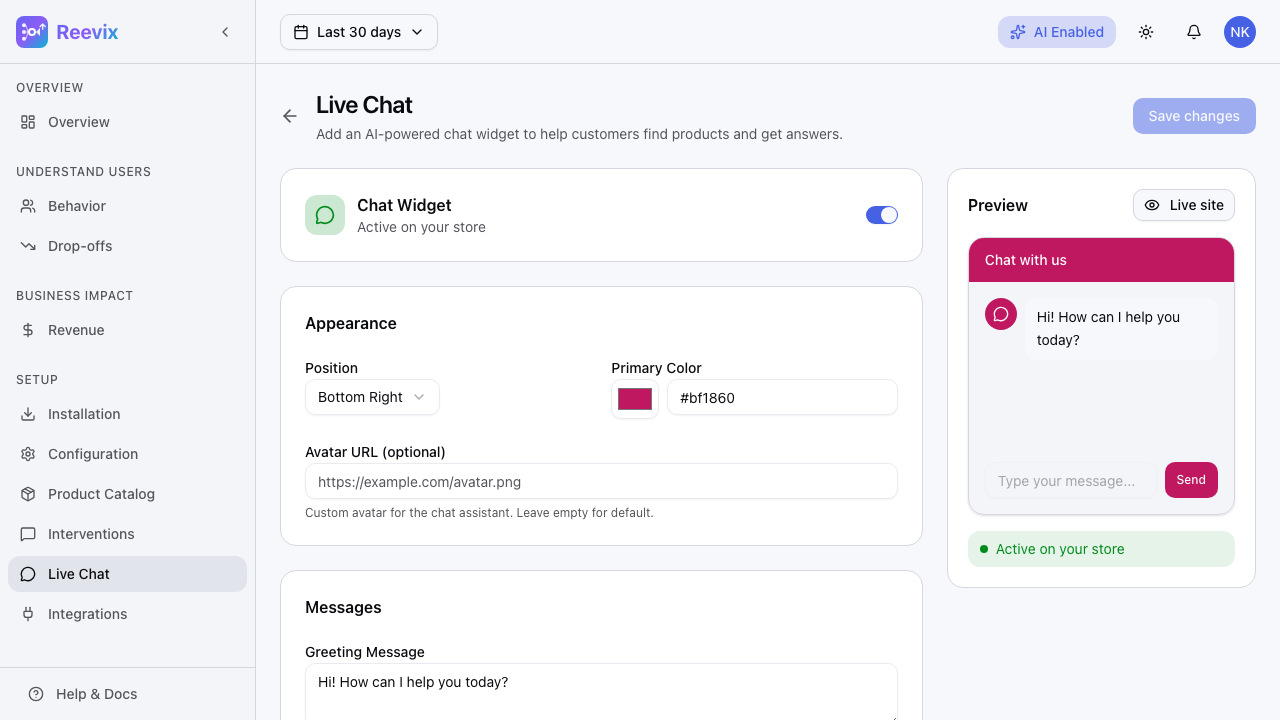
| Setting | Description | Example |
|---|---|---|
| Position | Where the bubble sits on screen | bottom-right or bottom-left |
| Primary color | Background color of the chat header and send button | #6366f1 (Reevix purple) |
| Avatar URL | Optional custom avatar image for the assistant | https://yourstore.com/support-avatar.png |
Changes are applied immediately to the live widget — no rebuild or deployment required.
Welcome Message & Quick-Reply Buttons
The welcome message is the first thing a customer sees when they open the chat. Use it to set context and reduce abandonment.
You can use the variable {{company_name}} — Reevix substitutes your store name automatically:
Hi! 👋 I'm the {{company_name}} AI assistant.
Ask me anything about our products, shipping, or returns.
Quick-Reply Buttons
Below the welcome message, add Quick-Reply buttons — one-tap shortcuts that open a conversation about the customer's most common questions:
| Field | What to Enter |
|---|---|
| Label | What appears on the button (max 30 chars) |
| Icon | Optional emoji shown before the label |
| Message | What gets sent to the AI when the button is tapped |
Example buttons:
| Label | Icon | Message |
|---|---|---|
| Track My Order | 📦 | I want to track my order |
| Returns & Refunds | 🔄 | How do I return an item? |
| Sizing Help | 📏 | I need help with sizing |
| Contact a Human | 👤 | I want to talk to a person |
Buttons disappear once the conversation starts. Add up to 6 buttons per store.
Tone, Hours & Offline Message
| Setting | Description |
|---|---|
| Input placeholder | Hint text inside the chat input box. E.g., "Ask anything..." |
| Business hours | Shown to the customer as context (e.g., "Mon–Fri, 9am–5pm EST"). Does not restrict AI availability. |
| Offline message | Shown outside business hours. E.g., "We're offline right now. Leave a message and we'll reply by email." |
Proactive Chat
Reevix can open the chat bubble automatically without the customer clicking it. Configure this under Chat → Proactive Messages.
| Setting | Description |
|---|---|
| Enable proactive messages | Toggle on to allow proactive pop-ins |
| Trigger delay | Wait 15s, 30s, 1 minute, or 2 minutes before triggering |
| Message text | What the chat says when it pops open proactively |
The proactive message is contextualised automatically:
- If the visitor has cart items: "Still thinking it over? I can help with any questions about what's in your cart."
- If the visitor is in the Comparing state: "Looking for something specific? Tell me what matters most to you and I'll help you decide."
- If the visitor is on the checkout page and idle: "Need help completing your order?"
You can write a custom message that overrides this automatic contextualisation if you prefer a fixed message.
Support Contact Details
Add your support contact information so the AI can surface it when escalating to a human:
| Field | Example |
|---|---|
| Support email | support@yourstore.com |
| Phone number | +1 (800) 555-0100 |
| Help centre URL | https://help.yourstore.com |
When a customer types something like "I want to speak to a real person", the AI responds with these contact details.
FAQs
Add question-and-answer pairs that the AI uses to give authoritative answers:
- Click Add FAQ
- Enter the question (as a customer would ask it, e.g., "What is your return policy?")
- Enter the answer (can be multi-sentence and include URLs)
- Click Save
Add as many FAQs as you need. The AI uses semantic search across your FAQ bank — it matches customer intent, not keyword matches. A customer asking "Can I send back a product I don't like?" will be matched to your "What is your return policy?" FAQ even though the words are different.
Best practices:
- Add FAQs for your 10 most common support tickets
- Use complete answers, not one-liners — the AI needs context
- Update FAQs when policies change (e.g., if you extend your return window)
What the AI Knows
The chat assistant draws on:
- Your FAQs — authoritative answers to declared questions
- Your product catalog — if connected, it can answer questions about specific products, pricing, variants, and stock
- Your policies — return window, shipping speed, and trust signals from the Setup Wizard
- The current session context — what page the visitor is on, what's in their cart, their behavioral state
- Your support contact details — for human escalation
The AI does not hallucinate policies or product details it hasn't been given. If it doesn't know the answer, it says so and offers to escalate.