AI Messaging Setup
Audience: Marketing managers, content writers, and store owners who want to understand and manage what Reevix says to shoppers.
The Messaging section is where you configure the on-site messages Reevix displays to your visitors. Every message is generated by AI specifically for your store — based on your brand tone, goals, policies, and product type — and deployed automatically by the autopilot.
How Messages Are Generated
When you complete the Setup Wizard, Reevix feeds your answers into a language model that writes a full suite of messages tailored to your store. This happens once on setup and whenever you click Regenerate All.
The wizard collects five things:
- What you sell — Physical products, Digital products, Services, or Subscriptions
- Brand tone — Friendly & casual, Professional & polished, Playful & bold, or Minimal & direct
- Your goals — Which conversion problem to prioritize (cart abandonment, AOV, comparison exits, etc.)
- Shipping & returns policy — Free returns, free shipping thresholds, delivery speed
- Trust signals — Money-back guarantee, promotions, price match, loyalty program, support hours
The AI uses these inputs to write messages that are always factually accurate — Reevix will never claim you offer free returns if you didn't say you do.
Viewing Your Message Templates
Navigate to Setup → Messaging to see all your generated templates.
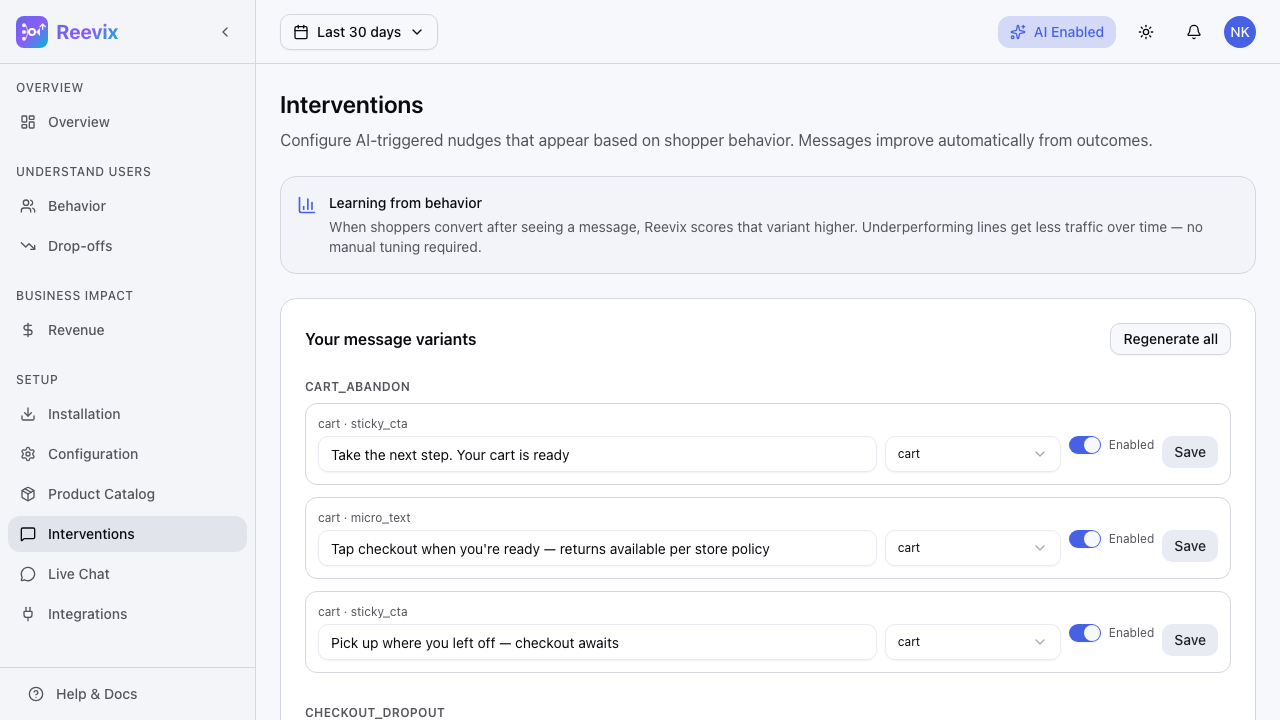
Templates are grouped by customer pain point — the underlying psychological barrier each message addresses:
| Pain Point | What It Targets |
|---|---|
| Considering leaving | Visitors with a cursor moving toward the browser close button |
| Price sensitive | Visitors who have looked at price-range items multiple times |
| Comparing products | Visitors who have viewed 3+ similar products |
| Need reassurance | First-time visitors with no prior purchase history |
| Cart hesitation | Visitors with cart items who haven't moved to checkout |
| Ready to buy | High-intent visitors who need a final nudge |
What Each Card Shows
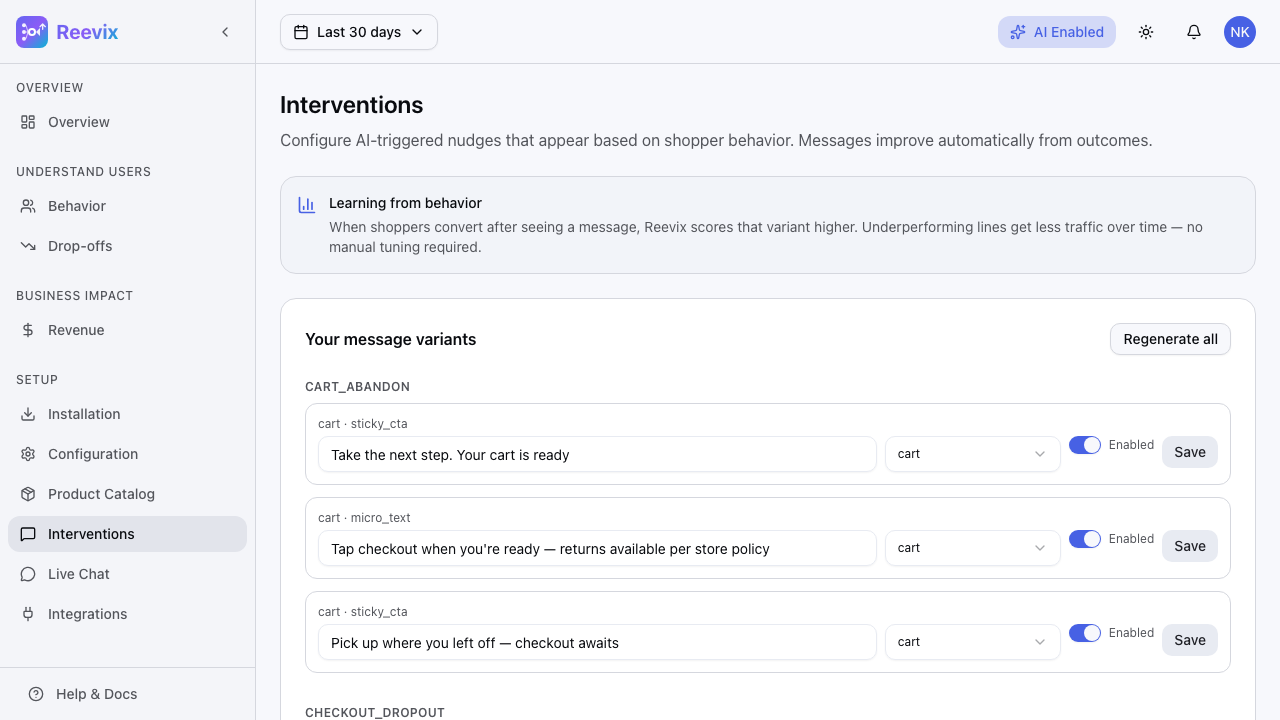
Each template card displays:
- Page type — Where the message appears (product page, cart, checkout, category page, homepage)
- Message text — The exact copy shown to the shopper
- Active toggle — Turn individual messages on or off
- Edit button — Inline editing with a live character count
Editing a Message
To edit a message:
- Click the pencil icon or tap the message text
- A text editor opens inline — modify the copy as needed
- Click Save — the change is live within 30 seconds
Tips for editing:
- Keep messages under 80 characters for mobile readability
- Don't add false claims — the AI constrains messages to your declared policies
- Use
{{company_name}}to auto-inject your store's name - Messages shown on product pages can reference
{{product_name}}
Regenerating All Messages
If you update your store policies (e.g., you now offer free returns), click Regenerate All to have the AI rewrite the full suite based on your latest Setup Wizard answers.
Warning: Regenerating replaces all existing templates, including any manual edits. Export your templates first if you want to preserve specific wording.
To update only your wizard answers without regenerating:
- Click Edit Store Info (top of the Messaging page)
- Update whichever fields have changed
- Click Save — changes are stored but messages are not rewritten until you click Regenerate All
How the Autopilot Decides Which Message to Show
Reevix scores each session every 50ms across dozens of behavioural signals. When the score crosses a threshold, the autopilot selects a template matching:
- The visitor's current behavioral state (Exploring, Comparing, Evaluating, Ready, Buying)
- The page type the visitor is on (product, cart, checkout, etc.)
- The visitor's pain point signals (price-sensitive behaviour, comparison-shopping, etc.)
- Time since last intervention (avoids showing the same visitor multiple messages in quick succession)
Over time, Reevix uses a multi-armed bandit algorithm to learn which templates perform best for each pain point and shifts traffic toward higher-performing variants automatically. You don't need to run A/B tests manually.
Message Types
| Type | How It Appears | Best Used For |
|---|---|---|
| Text nudge | Small pop-in banner at the bottom of the page | Free shipping reminders, return policy reassurance |
| Highlight | Subtle highlighting of an existing page element | Drawing attention to a trust badge or review count |
| Reorder | Rearranges page sections to surface persuasive content first | When the most convincing content is below the fold |
You do not configure these directly — the autopilot selects the best intervention type per session context.